Save a Google Maps place to a contact
Share a place from Google Maps and save its name and link to a contact card, so you can find the spot later from your contacts.
Steps
Turn on Use CallPalette in the app's Settings first if it is off.
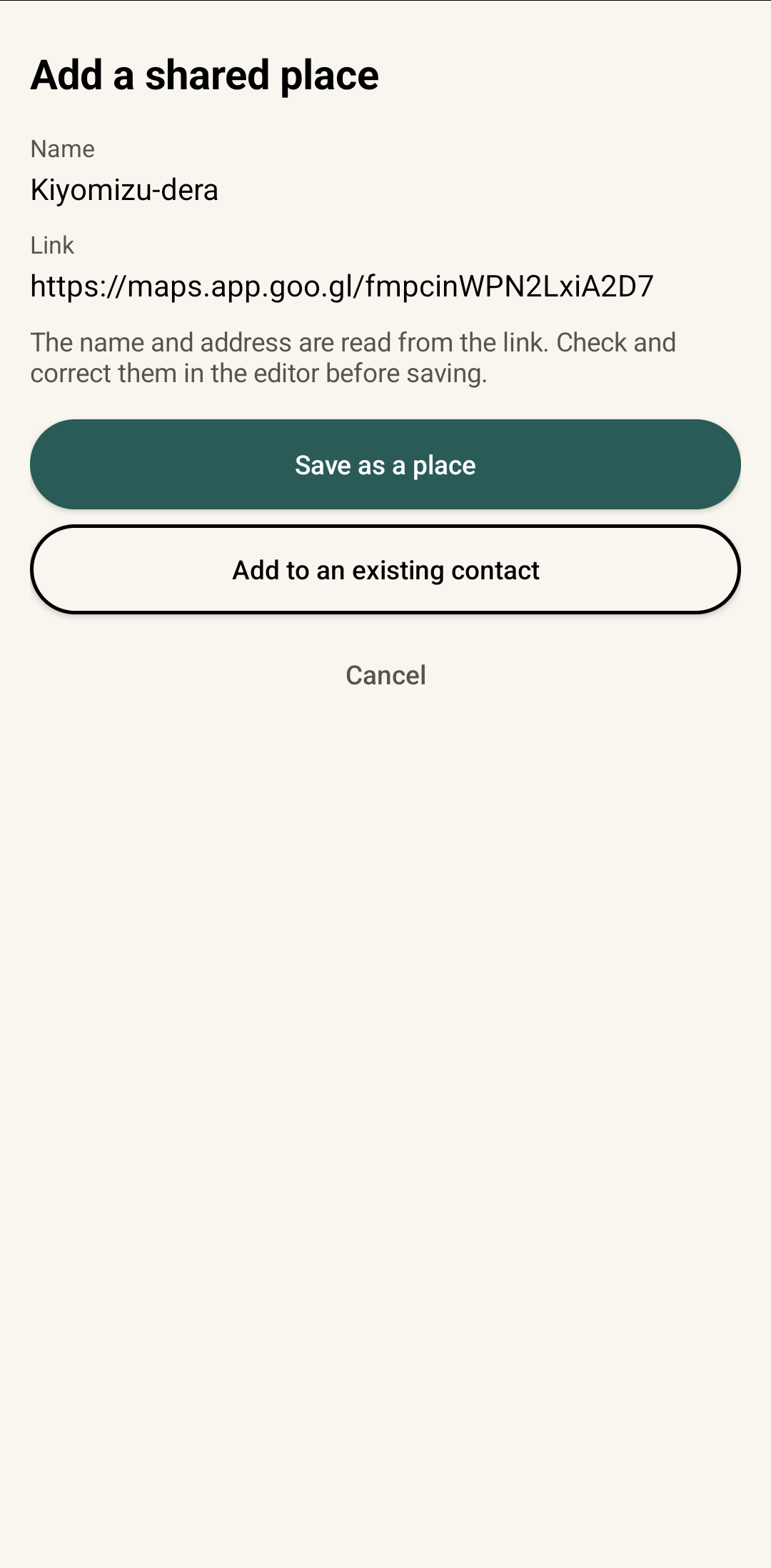
Share, then choose CallPalette
In Google Maps, open the place and tap Share. Pick Add to CallPalette (on some phones it shows as just CallPalette) from the share sheet. On the Add a shared place screen, tap Save as a place.
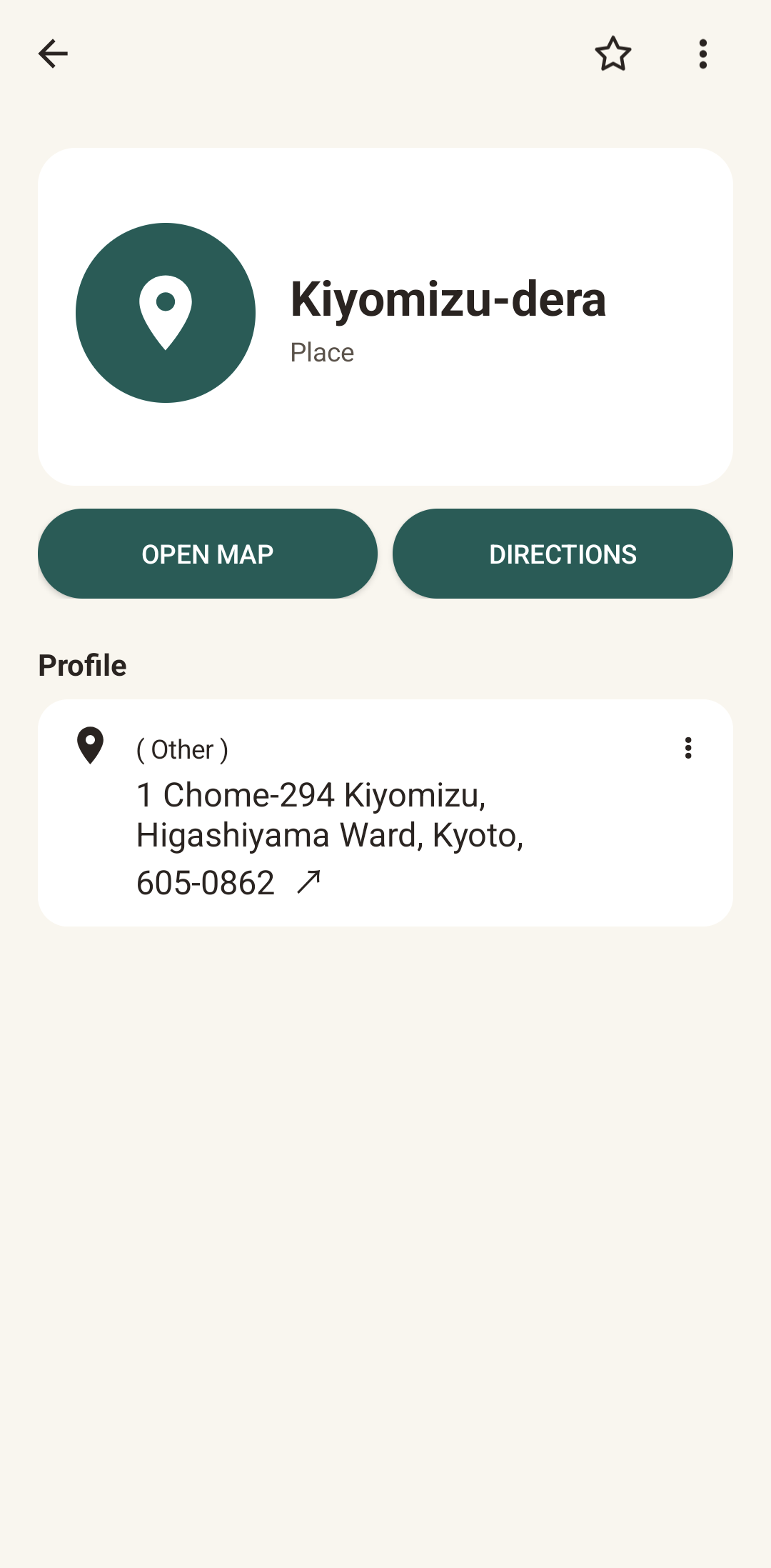
Check it, save it, open it later
Check the name, address and link on the Create contact screen, then tap Save. The saved place has Open map and Directions buttons.
A few things to know.
What is saved?
The place name and a link back to Google Maps. The address is filled in when it can be read from the shared link; depending on how the place was shared, it may not be.
Can I correct the name or address?
Yes. The Create contact screen lets you check and edit them before you save.
Can I add the link to a contact I already have?
Yes. On the Add a shared place screen, choose Add to an existing contact.
Do I need to be online?
Reading the name and address from a shared link, and opening the map or directions, need a connection. Offline, the link and the shared name are still saved. If the link takes a moment, you can wait for the details to appear or continue without waiting.
Where do my saved places go?
They appear in the Saved places group, which you can open from the Groups tab.
More guides: birthday reminders · organizing contacts with groups · all guides